
tl;dr: When upgrading your internet service, ask many questions, do your homework, have a backup plan, and expect additional challenges and potential costs
I’m an experienced IT professional, so many of the steps I took are beyond what others may know or understand. I’ll try to keep this as clear as I can for the non-IT person.
It used to be that internet service was used only for email and web surfing (and even before the web: anyone remember Gopher, Archie, or Veronica?). Older folks may reminisce about modems screeching and whining and tying up the telephone line for hours. I can remember watching text appear on the screen, almost like someone was typing on the other side of the monitor’s surface. I could read the text faster that it took the modem and computer terminal to serve it up.

Nowadays, internet service is used by so many more devices and services in your home. Many people have cut the cord and switched their television viewing to streaming services like Netflix, Hulu, and many others. If your cell phone has bad coverage inside your home, you might use Wi-Fi on your phone when at home. Many computer printers use Wi-Fi and can be placed anywhere, even in a closet, unrestricted by the tether of a heavy cable. Home security systems and cameras, your children’s laptop or tablet computer, video chats with family and friends, your home voice assistant/question answerer (Alexa, Siri, Google), your video doorbell (Ring), your gaming consoles, even your thermostat, outlets, and other so-called “smart” devices or “E-” or “I-” devices may all be dependent upon Wi-Fi and internet service.
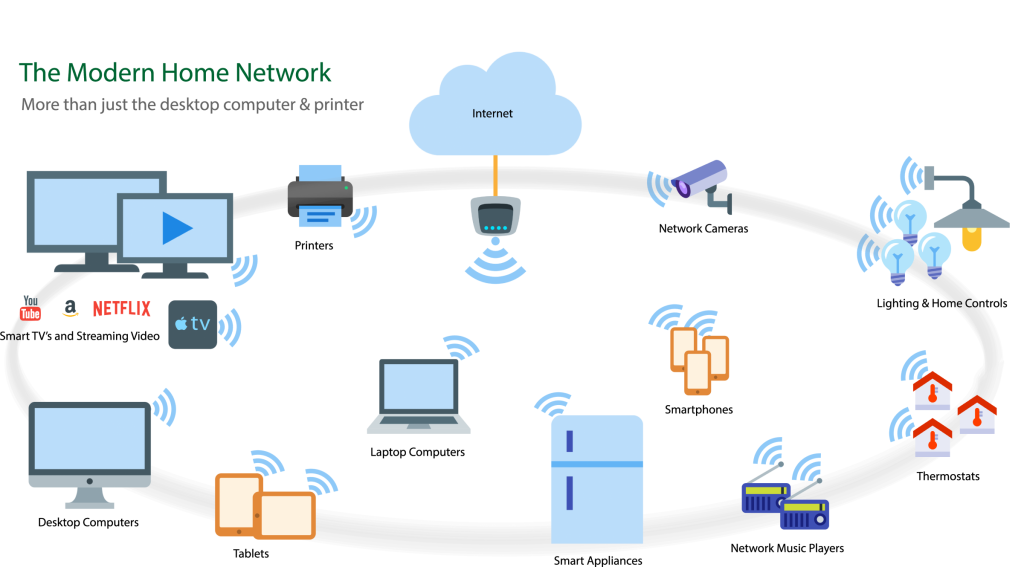
With the pandemic, there are added demands on your internet service. Distance learning, remote work, and the increased reliance on video chatting to stay in touch with friends and loved ones have added to the burden placed on your internet “pipe.”

So, I decided to upgrade my internet connection speed.
What follows is a long, hopefully instructive and cautionary tale.

We had a 25m/25m connection (25Mbps upload/25Mbps download) connection, which was sufficient for most our needs. I work remotely and attend numerous video conference calls. Sometimes when I move large files (backups, downloads), it impacts streaming TV in another room (loss of picture quality, network hiccups, etc.). I write and edit several blogs and administer a retail website. I also am doing more video work, both live and recorded, and those files can be huge and data transfers time consuming.
Want to test your network speed? Two websites I use are:
https://www.speedtest.net/
http://speakeasy.net/speedtest
Doing a little research, I learned my internet provider could upgrade me to 100m/100m with little to no increase in monthly fees for a year. It seemed like a no-brainer. I called them up and ordered the upgrade. They said a technician would come the following day between 8am and noon to do the necessary work. I was delighted that we could get upgraded service so quickly!
Mistake #1: I did not ask whether my internet service would go down before the service call
Mistake #2: I should not have scheduled my upgrade during a time that would impact my work
The customer service person never indicated that I might lose internet service before my scheduled service call. The evening before our scheduled appointment, our internet quit working around 10:30pm. No TV. The house was strangely silent.
I called tech support and was told that programming changes on their end to support 100m/100m had likely been made, and since my old network hardware was incompatible and needed to be replaced, that was the cause for the outage. I asked if our service could be returned to 25m/25m so I could do my work early in the morning and was told, yes, but it would take a while. I went to sleep.
At 5:00am, our internet was still down, so I called tech support. Yes, our service wouldn’t work, and, what’s worse, for some reason our scheduled technician visit for that morning had been canceled! The next available appointment wouldn’t be for another two days! Exasperated, I asked to get that new appointment locked down, but insisted I needed to be restored back to 25m/25m in the meantime. The technician agreed, and after at least an hour on hold, they made the changes.
On my end, I disconnected all my network equipment (router, bridge, wireless AP, etc.) and connected a PC directly to the internet port (what for most people would be the equivalent of the modem). The PC connected. I thanked the technician and hung up.
I then tried adding the first network device between the modem port and the PC: my router. No dice. I plugged the PC back directly into the modem. No internet.
I called tech support back, and after about 30-45 minutes, was able to get internet restored for my PC. We hung up, and I plugged my router in. No internet. Plugged my PC back in, no internet.
I went thru this cycle of calling the provider, getting service, hanging up, losing service at least 2-3 times. Each time on the phone took at least 30-60 minutes. And there were several phone calls where I was dropped and had to call and start all over again.

Through these calls I learned a little bit more about the network devices on the provider’s side (Optical Network Terminal or “ONT”, its power supply and battery backup). I learned how to power cycle my ONT, and doing so, was able to restore my own internet service. Through testing, I found the internet service would last about 5 minutes, then drop. That is why, I assumed, I could never get anything other than my PC to work; by the time I’d connect anything else, my internet service had ceased.
So I called tech support back to report this new information. They were perplexed and said the issue was likely my ONT, and only a service technician’s visit would fix it. My appointment was still two days away. Two days without being able to work remotely. Two days without any streaming TV. Two days with barely a single bar of signal strength for my cell phone at home. They promised to escalate the service request in case a technician might get an opening to help me. By now it was midday and I’d spent 7 hours wrangling with this issue.
During our wait, we decided to go ahead and upgrade to gigabit, which is approximately 1000Mbps. If we were going to go through this much pain to upgrade, why not go for gigabit. A call to customer service assured us that we only needed to tell our technician we wanted gigabit, and they would be able to install that for us on the spot.
Amazingly, I received a call from a technician just an hour or so later saying he was available and could swing by within minutes.
The technician was great. He spent about 4 hours replacing equipment on the outside of the house and inside and testing everything. He was courteous, professional, and answered all my questions.

My old Optical Network Terminal (ONT) 
My new gigabit ONT
At the end of his labors, we connected my PC, and instantly I was seeing data transfer speeds over 900Mbps. And my internet didn’t drop after 5 minutes. The technician gave me his card with phone number, wished me well, and departed.
The technician’s work was done, but mine was only beginning. I needed to get my whole home network back up and running: router, switch, Wi-Fi and all the Wi-Fi devices.
I plugged my router in…and no internet. I plugged my switch in and it worked, although I could not get my Wi-Fi AP (Access point) to work. But I really needed a router to work to provide the security needed at the first point in my network connection.
Confused about the difference between a Router, Switch, and Access Point? Here’s an article that is directed more toward the lay-person:
https://wiki.shopingserver.com/trouter-the-access-point-and-the-switch/
Although my router and wireless access point are both on the higher-end, they were both a few years old, and after an hour futzing with them without success, I decided to buy a new Wi-Fi router.
Many people use a router supplied by their internet provider. On one hand, you get the benefit of having something your internet provider supports and troubleshoots for you. On the other hand, it will likely not be the most up-to-date feature- and performance-wise. Also, you are usually charged a monthly rental fee. $5 or so a month may not seem like much (and a bargain if you think your provider offers decent tech support), but if you do your research and purchase your own modem, you may save money in the long run and enjoy better performance and security – but you have to know what you are doing and/or have someone you can call on to help you if you need it.
A short Costco buying spree later, I plugged in the new router and followed all the steps…and no internet. Argh!
I called tech support with my internet provider, and was placed on hold for a 2nd level technician. As the minutes ticked by, I dived deep into the new router’s settings. I upgraded the Firmware (something everyone should do with their router on a regular basis; here’s why). I kept plugging the PC directly into the modem (success) and then the router (failure). Then I stumbled on an unexpected setting in my router:
My router has a Router MAC Address setting. It allows you to use the MAC address of the router (default), or use the MAC address of the computer.
What is a MAC address? Here is one explanation:
https://whatismyipaddress.com/mac-address
Since my internet worked fine with my computer and neither my old nor new router would not, I suspected the MAC address. Perhaps my internet provider had some sort of connection, expectation, or restriction to my PC’s specific MAC address. So I tried that setting. Voila! Everything started working!
I continued to remain on hold with tech support. I wanted to see if I could remove that restriction as it might cause problems in the future. While waiting on hold I connected my switch, configured Wi-Fi on the router, then went around the house bringing Wi-Fi devices online (TVs using Roku sticks, wireless printers, laptops, cell phones, tablets…). I got everything back online and tested. I completed this in about 40 minutes, and I never got a tech support person. I hung up.

My wired computers are now consistently getting between 600-950Mbps speeds (a 40x increase in speed). My wireless devices are getting 60-250Mbps depending on which wireless protocol I use and how far they are from the Wi-Fi router (a 3-20x increase in speed).

Lessons Learned:
- If you are upgrading your internet service, expect and plan for outages. Ask your provider directly what you should expect, but have a backup plan. You want to minimize disruptions to your work, your child’s distance learning, your streaming services, etc. if possible. Have a backup plan in case the upgrade takes hours or days longer than expected.
- Make a list of every networked item in your house. Make sure you have documentation on them all, especially how to connect them to Wi-Fi (printers, smart devices, security cameras, etc.). If needed, download and print the documentation for your router, switch, and all Wi-Fi devices, etc. before you upgrade.
- Test logging into your router, Wi-Fi settings, etc. before you upgrade. Make sure you have all your logins and passwords printed out.
- Upgrade the firmware on your router.
- Ask specific questions about costs: will the technician visit, the hardware upgrade, etc. cost you anything? What will the monthly fee be afterwards? Is that a promotional fee that increases after 3/6/12 months?
- Ask if you will be charged anything if the new equipment fails and needs to be serviced or replaced.
- If any of your network equipment is old, you may need to upgrade it to get the best performance. For example, since I was upgrading to gigabit, I needed to make sure my router and switch supported gigabit speeds. In my case, my switch maxed out at 100Mbps.
 Blatant Calm
Good information. Thanks for sharing your history and exprrience.
LikeLike
Nice summary of the history of connectivity.
LikeLike