tl;dr: What you need to get started with JamKazam
In this post I will go over technical requirements to minimize latency, which apply to any online musical collaboration solution, as well as other equipment needed and the first steps to getting set up for JamKazam in particular,
The key to success, and the biggest hurdle to real-time online musical collaboration is minimizing latency. Every step of the way – from you singing or playing a note, the mic picking it up, the sound being converted into electronic form and being transferred into your computer, out your network connection, over the internet to your musical collaborator(s), etc. etc. until they hear it on their end – every step introduces a hesitation, a lag, a latency. For success, we must do everything to reduce and eliminate latency.
1. You must have a wired network connection to your computer
No if, ands, or buts. You cannot use Wi-Fi on your laptop or desktop computer for your internet connection. You could have the fastest internet service (I just upgraded to gigabit, which affords me up to 950Mbps upload and download speeds), but if you use Wi-Fi, an untenable delay will be introduced.
Update: I’ve written a whole blog entry on setting up a wired network connection
“But my router and computer are in different rooms”
That’s okay. Look on the back of your router or modem. You will likely find a row of ports which look like they are for oversized telephone jacks. These are Ethernet ports, and you can run an Ethernet cable from your router or modem to your computer.

If there are no unused ports available, see if you can free any up by removing any unused cables or devices. You can also try switching a device to Wi-Fi (e.g. many printers now support Wi-Fi) and removing its Ethernet cable connection.
If you can’t free up a port, you can purchase an inexpensive Hub or Switch, which is rather like a power strip: you plug it into one port on your router or modem, and the hub or switch will offer up several free Ethernet ports to use.
Ethernet cables, sometimes called “Cat5” or “Cat6” cables, can be purchased for mere dollars, and can be 5, 10, 25, 50, or even 100 feet long. Figure out how much length you need (error on the long side). Of course you want to minimize trip hazards and cables getting crimped in doorways.
If you are, or have a friend who is handy, Ethernet cables can be “fished” through walls, under floors, and above ceilings and an Ethernet jack can be installed in your wall in a more convenient location. This permanently avoids having to string a cable under doors and across hallways..
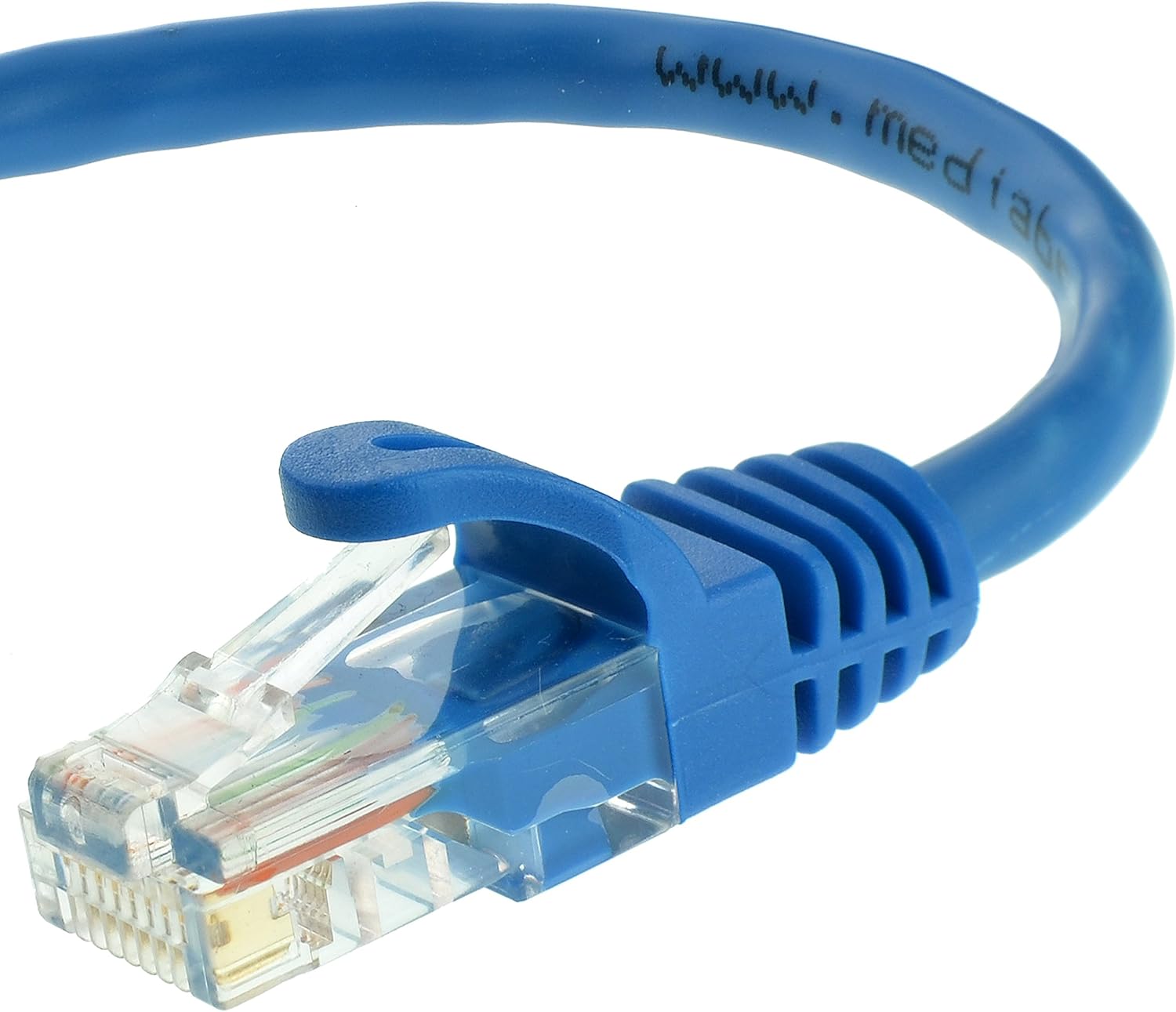
Once you connect your Ethernet cable to both your modem/router and your computer, turn off Wi-Fi on your computer to ensure it is not using Wi-Fi and that it is using your Ethernet connection. You can also test your internet speed which may very well be improved.
“How do I know what speed my internet connection is?”
Two websites I use to check upload and download speeds are:
https://www.speedtest.net/ – just click “GO”
https://www.speakeasy.net/speedtest/ – just click “Start Test”
Both of these sites will run a test for about a minute or so, and then will report your Upload and Download speeds.
Note: Upload and Download speeds do not indicate what your latency is. However, you may see improved overall speeds with a wired Ethernet connection versus one over Wi-Fi. Low latency coupled with fast internet service will improve your online musical collaboration experience.
“My computer doesn’t have an Ethernet port!”
Many laptops have no network port into which you can plug an Ethernet cable. My Mac PowerBook has none, but I was able to purchase a “USB C to Ethernet Adapter” for US$15. Check to see what kind of connections your device has first (USB-C, USB-B, etc.).

2. Headphones and Earbuds
You will need headphones or earbuds to minimize echo and feedback. I recommend wired vs. wireless/Bluetooth, since the latter can add latency. You will want a long cord/extension cord to give you freedom of movement.
3. Microphone
If using a laptop, it likely has a built-in mic. You can use that, but the sound quality will be limited. But it may do for your initial testing.
My first tests were with wired USB mics. I tried a wired headset with mic (Plantronics Blackwire C520) and a Blue Yeti USB plugged into my Mac PowerBook. Both worked great.

For singing, a headset would be fine. However, if you want to play an an acoustic instrument, a mic that isn’t right in front of your mouth makes better sense. If you are going to play an electric instrument (keyboard, electric guitar, etc.), an audio interface (see below) is likely required.

If you are using a laptop, you may have a limited number of USB ports, or you may have no standard USB ports (e.g. my Mac PowerBook only has USB-C ports). You may need to use, for example, USB to USB-C adapters US$4-10 or a dock with USB ports.
4. Computer requirements
It may vary depending on the musical collaboration software you use, but since I started with JamKazam, https://jamkazam.com/ I’ll list their requirements (although other solutions may support Linux and other operating systems, JamKazam is strictly for Windows or macOS – no Linux, Android, or iOS):
Windows: Window 7, 8, or 10, 64-bit
Unsure which Operating System you have? Right-click the start menu and choose “System” and it should display the version of Windows you have and whether it is 32-bit or 64-bit.
Mac: MacOS 10.8 Mountain Lion or later
Unsure what MacOS you have? Click the Apple icon in the top left and choose “About this Mac.” The top line indicates the name of the OS (e.g. “macOS Catalina”) and the second line the version.
5. Sound Interface (optional)
If you view JamKazam setup videos (above and elsewhere), you will see many references to “audio interfaces.” I don’t own one, but may end up purchasing one at some point. They can be less than US$100 but can be much more depending on the features and number of inputs. If you go that direction, I recommend you do your research and buy one with a USB interface.
Unless you want to play an electric instrument (keyboard, guitar, etc.) you don’t likely need one to get started.
JamKazam Account
To use JamKazam, you must create an account. It’s free. Just follow the steps at: https://www.jamkazam.com/signup
A free account will give you up to a 1-hour long session, and 4 total hours per month. During your first month, you are given “Gold” level service which has no time restrictions, supports higher-level sound quality, and offers email support. Here’s a comparison of their various plans.
Previous Post:
Next Posts in Series:
MMOTIRT Part 2: My First Successful JamKazam Session
MMOTIRT Part 3: JamKazam First-Time Login and Setup
Next post: MMOTIRT 3: My First Successful JamKazam Session
To see my introduction to this series, click here.
#makingmusictogether
#thepleasureofyourcompany
#jamkazam
#nolatencymusic
 Blatant Calm
Pingback: Making Music Online Together in Real Time: Introduction | Blatant Calm
Pingback: MMOTIRT Part 2: My First Successful JamKazam Session | Blatant Calm
Pingback: MMOTIRT Part 3: JamKazam First-Time Login and Setup | Blatant Calm
Pingback: MMOTIRT Part 4: Your First Jamkazam Session! | Blatant Calm
Pingback: MMOTIRT Part 5: Getting a wired network connection | Blatant Calm