
New!
I’ve been building a whole website dedicated to online karaoke parties and how to host them. You can find it here:
https://howtodoonlinekaraoke.wordpress.com/
I’ve also started creating how-to YouTube videos. You can find them here:
https://www.youtube.com/channel/UCojcgbCxhdl_7ussfHMVe1Q
A couple local TV stations and some bloggers have interviewed me about my online karaoke parties. You can see/hear those interviews here:
https://blatantcalm.home.blog/2021/01/01/spreading-the-news-about-online-karaoke/
I started hosting online karaoke parties in May, 2020. I love seeing the smiles and hearing the laughter of so many friends. Many of my friends have become friends with each other, which is a real joy to me!
I’ve compiled this page with pointers, tips, and tricks for setting up and getting the most out of your online karaoke experience. I continually update this document as we gain more experience.
We are using Google Meet. It works across platforms, the sound quality is acceptable (nothing is great that we’ve found so far), and is far more secure than Zoom.
Here are some tips, especially for those who haven’t already participated in one of our online karaoke parties.
Quick Start Guide:
To Sing you need:
a. A device to record video (Laptop, Desktop, Tablet, or Cell Phone) (see #1 and #2 below)
b. A device to play your music (Laptop, Desktop, Tablet, Cell phone, Smart TV, MP3 Player, etc.), preferably with external speakers (see #1 and #2 below)
c. Music – YouTube Karaoke tracks will meet most your needs (see #5 below)
To Spectate/Cheerlead/Dance, you’ll need just a single device to connect to Zoom (we used to use Google Meet, but all the conferencing programs now charge money for meetings lasting longer than an hour).
Detailed Instructions and Guidelines:
1. Download and install Zoom. Don’t wait until it’s party time. Install it now and do a quick check with someone else to make sure your camera and sound are working. I’m happy to test it with you – it only takes a couple minutes.
I recommend connecting with a laptop or computer over using a mobile device because with the former, you can see everyone, but with a mobile device, you can only see one person at a time.
2. Ideal electronic configuration
Update: I’ve created a new document showing various hardware setups with pros, cons, and tips. You can see it by clicking here.
If you are only spectating and not singing, a single device will do. Laptop or desktop computers generally are preferable as they will allow you to see everyone, whereas a mobile device will only show one person at a time.
If you are singing, you ideally need two devices to make virtual online karaoke work: one to record yourself and the other to play the music:
Practice and get comfortable with this feature.
Note to mobile device users: If you use a cell phone or tablet to connect to Google Meet, you can only see one person at a time. Normally that will be the person who is speaking or performing and will be fine.
However, if someone is using a hybrid system (see VI. Hybrid Systems), your view will jump to a static picture of them, not their video feed. Go through the list of participants and find their other connection and use this pin feature to lock that view. Then you will be able to see their video feed.
4. Multiple View on Laptop/Desktop computer. If you use a laptop or computer, you can see multiple people in a tiled view (like the picture at the top of this page), often everyone at the same time, which is fun. Be sure to test it out ahead of time to make sure your mic and camera have the permissions set right.
Sometimes, as people join later, they may not immediately appear on your matrix. Simply reset your view by clicking on the three vertical dots on the bottom right corner, Change Layout, and then choose “Tiled.” That should reset and correct your view.
There are other view options, too, including a big picture for the person speaking/singing, and a row of small thumbnails for other attendees. Try switching views to find your preference.

5. Karaoke music tracks. Click here to learn where to find karaoke music tracks or even create your own.
Queue your karaoke videos up before the party and press play. YouTube sometimes like to play an ad before the video. Get those played and done before you are ready to sing. .
During the party, I try to announce the next three singers. That will give you time to pick your song, queue it up (past any advertisements), etc., during one of the singers before you. That keeps the party going along smoothly.

6. Muting your mic. Practice and get comfortable muting and unmuting your mic. If you see a little red mic icon on the bottom of your picture, you are muted. If you see three green dots, your mic is not muted and people can hear you and whatever is going on around you.
Please mute when:
- someone else is singing
- you need to step away
- when you are about to cough
Basically, it’s best just to stay on mute except when you want to talk (e.g. when someone is finished singing and you wanna cheer). Otherwise, I recommend sticking to sending text chat messages.
Don’t fret if you forget to mute. The host (usually me) will quietly mute you if you forget to do so. And I am human: I sometimes forget to mute myself! Do send a chat message to remind me if I forget!
7. Holder for your mobile device. If using a mobile device, it is helpful if you have a holder or stand to secure and aim your phone/tablet. You hand will get tired holding it the whole time and you can avoid having it slip or fall mid-song.
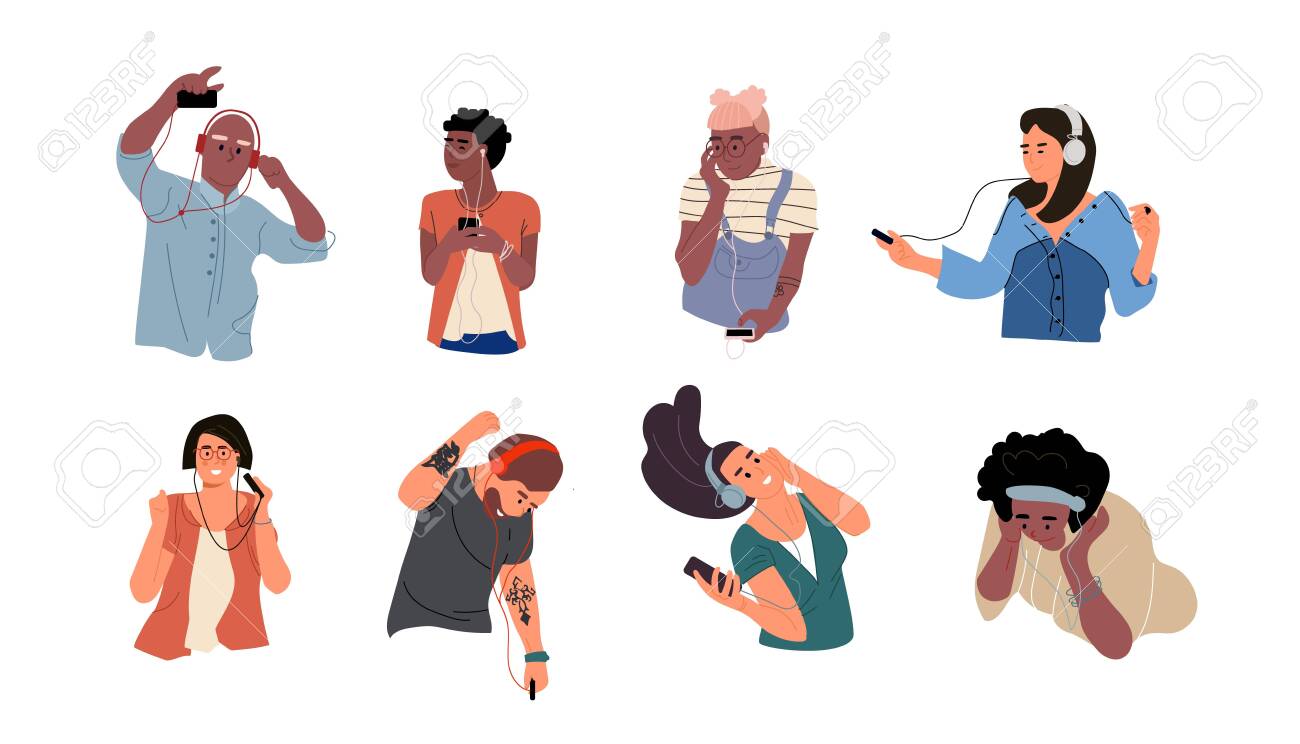
8. Use headphones or earbuds wherever possible, preferably wireless. If you don’t use headphones or earbuds, it may cause an echo for other attendees. If you have no earbuds or headphones, stay on mute as much as possible to minimize feedback/echos.
Wireless earbuds are nice if you have them because you won’t be tethered and can stand up and dance if you are so moved. Also, if your wireless earbuds/headphones also have a mic, you won’t have to worry about staying close to your mic while you sing. Make sure they are fully charged. Even then, you might run out of juice during a longer party.
If you are using wired earbuds or headphones, connect using the longest cable you can find.
Also, when you sing, it often sounds better if you let the one wired earbud hang freely that has the mic attached. It helps balance the volume between your voice and your backing music.
9. Test the volume levels. It takes practice to get the volume of the music and your voice balanced. Connect with someone else (like me or Alicia) to test it out. The sound quality will never be excellent as video conference software (like Google Meet) prioritizes voice over any other sounds. Adjust your expectations accordingly.
10. No distance duets at this time. At this point, there is no way to sing duets or trios, except if both singers happen to be in the same place. The time delay on the network, feedback, etc. just make it untenable.
Update: I have heard from some musicians about possible software solutions that may overcome this significant obstacle. Even if they do, however, they may not be well suited to large group sessions like this. Stay tuned…

11. Be patient! There will be technical issues and the sound may never be great. There may be video freezes, sound failures, or network connection issues. People may have to drop off the Google Meet and reconnect. People may forget to mute themselves, etc. Regardless, I am certain everyone who comes will still have a great time!
12. Can’t find the meeting link? Party started and can’t find the link? Go to the Facebook event or double check your email for the Google Meet link (like https://meet.google.com/abc-def-ghi ). Click on it and you should be able to join.
Many people are abandoning Facebook or at least reducing their reliance and time on that platform. I am now sending out invitations via email. If you don’t see the emails, make sure I have your address and also check your spam folder.
13. Messaging while in the meeting. If you need to send a message to someone in the meeting, please do so within the Google Meet app, because they might not be able to switch to another program if they are on their phone. Practice and familiarize yourself with this feature. By default, chat messages are sent to every participant, so choose your words thoughtfully!
Messaging is also a nice way to let someone know they did a good job, make requests, or just joke around without virtually commandeering the mic from everyone else.
14. Maximize your network speed! If you have the option to have a wired/Ethernet connection, use that. If you are using WiFi, try to find a strong signal. You might also want to reboot your WiFi router before the party to make sure your network speed is maximized

15. AC power for your mobile device. Plug whatever you are using into AC power. Using your camera, broadcasting, and recording sucks a lot of juice. You don’t wanna run out of power mid-song!
Also, if you are using wireless earbuds or mic, be sure they are fully charged. Mine regularly run out of juice during a party, so I have two sets I can swap between.
16. Use hand signals. With many people online at once, it can really get chaotic and confusing if multiple people try to talk at the same time. I recommend a couple hand signals that can help out a lot during big online group sessions:

One or Two Thumbs Up: Hold your thumb(s) up without movement to indicate “Yes!” and/or “sounds good!” Holding them steady will avoid confusing it with the single thumb with upward motion (see below).
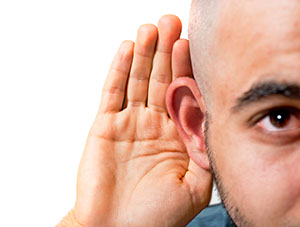
Hand(s) to the Ear: Cup your hand to your ear if you cannot hear or understand someone’s voice. If you are singing and you see people with hands cupped to their ears, that means they cannot hear your singing (or anything at all). If so, sing louder or move closer to your mic.

Single thumb with upward motion: This means your music is too quiet. Crank up the volume on your music and/or move your speaker(s) closer to your mic. It takes practice and adjustment to get the right balance. Often, your voice will completely drown out your music. So if you see people giving a thumb up with an upward motion, that means to turn up your music!
Body Language: Smiles, singing along (while muted), hands in the air, head bobbing, jazz hands, dancing – these are all great ways to show the singer you are enjoying their performanc and appreciate them.
17. Come and go as you wish. Don’t worry if you need to step away (to refill a drink, stretch, use the facilities, etc.). Just go for it, no need to announce. The singer and the others won’t be offended or distracted. Make sure your mic is muted. If you want, you can send a chat message to the group, but that is not necessary.
Don’t worry if you can’t join until later, or if you have to leave early. Just let the host (me) know ahead of time so we can schedule you accordingly.

18. Get shiny. Props, toys, hats, lights, costumes, etc. are heartily endorsed and enthusiastically encouraged.
See all y’all soon!
P.S. Wanna see the pictures from the parties, see the song lists, and other stats? Click here.
 Blatant Calm